Why do you need to migrate
The OhmConnect platform closes on October 31, 2026 and all accounts will be deleted then. The OhmPlug app closes on October 31, 2026 as well.
How to migrate your OhmPlug to the Tuya app
Step 1
Download the Tuya Smart Life, Smart Living app
Get the apps here:

Step 2
Create a Tuya account
Because Tuya is a different platform, your OhmPlug app login will not work here. You will need to create a new account.
Choose the option that works best for you:
- Option 1: Sign up using a Single Sign-On (SSO) option
- Option 2: Sign up using your email address
Note: After creating your account, you may see a Service Maintenance screen. Tap "Go to App" to skip it.
Step 3
Enable app permissions
Before you can add your OhmPlug, Tuya will request various access permissions. You'll want to grant these permissions to enable a smooth pairing and other functionalities.
To start:
- Make sure your phone or tablet's Bluetooth is on and you're connected to your home's Wi-Fi.
- Tap the "+" icon on the top right of your screen. The permissions screen should show up here.
Grant the following permissions:
- Location: Allow while using the app
- Bluetooth: Allow
- Local Network: Allow
- Home Data: Allow
The following permissions are optional and up to your discretion:
- Notifications
- Cross-App Tracking
Note: The permissions screen only appears on a first-time install. If you've had the Tuya Smart Life, Smart Living app before, you won't see it and can skip ahead to Step 4.
Step 4
Reset your OhmPlug
Before the Tuya app can find your plug, we need to wipe its old connection and put it into pairing mode:
- Plug your OhmPlug directly into a wall outlet
- Press and hold the power button on the side for about 6 seconds
- Release when the LED starts blinking rapidly. This means it's ready to pair.
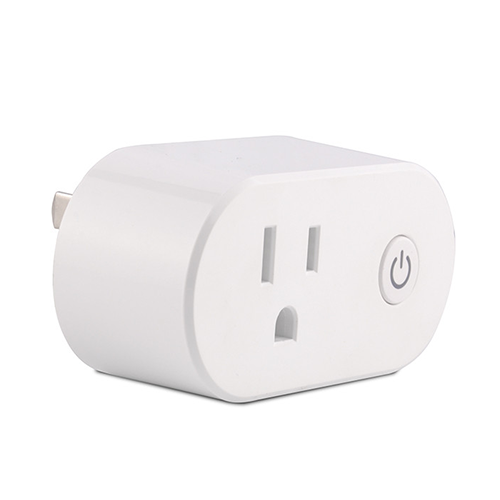
Use the following LED indicator guide to help with troubleshooting:
Rapid red blinking
Ready to pair. Switch to the Tuya app and it will find your plug automatically.
Slow red blinking
Hold the button for another 6 seconds.
Solid blue
Successfully connected
Off
Also means successfully connected
Solid red
Wrong Wi-Fi password. Reset and try again.
Step 5
Connect your OhmPlug to Wi-Fi
Once the plug is paired, the app auto-detects your current Wi-Fi network and will find your OhmPlug automatically:
- Tap the plug icon on your screen to continue.
- Carefully type in your Wi-Fi password. It's case-sensitive. Then tap Next to begin pairing. This usually takes 30 to 60 seconds.
- Once you see Added Successfully, tap the pencil icon to rename your plug (e.g. "Living Room Lamp"), then tap Done.
- You're all set!
You can now use the Tuya app to remotely control your OhmPlug, set schedules, and link it to Alexa or Google Assistant just like before.
Troubleshooting
If the Tuya app can't find your plug, make sure your phone or tablet is:
- Connected to your 2.4 GHz Wi-Fi network (not 5 GHz)
- Bluetooth is on
- Your OhmPlug LED light is blinking rapidly
Remember: A solid red LED light means the wrong Wi-Fi password was entered. Reset the plug (Step 4) and try again.
E-waste notice: If you choose not to use the Tuya app, please consider recycling your device at an e-waste center near you.